Script → Breakdown
You have a screenplay PDF or text. Grace parses it into scenes + elements (cast, props, stunts, sfx, animals, etc.) using Claude Opus, with Gemini 2.5 Flash as a fallback. You then review the AI's calls — accept, reject, or adjust — and commit the result. The committed breakdown is the data foundation for everything downstream (schedule, budget, call sheets, shot list).
1. Upload the script
Open the production's Breakdown page (/dashboard/breakdown). On a brand-new production with no script uploaded yet, you'll see an upload prompt.
Click UPLOAD SCRIPT. Pick a PDF or .txt file (.fountain is parsed as text). Up to 25 MB.
The upload returns immediately with a jobId — the actual AI parse runs in the background. You'll see a SCRIPT PARSING… pill in the top bar with live progress (0% → 90% during the LLM stream, 90% → 100% during DB writes).
The pill is also visible on every other page of the app, so you can keep working while it runs. Typical parse time: 90 seconds to 4 minutes for a feature-length script.
What's actually happening: Grace streams the script through Claude Opus 4.7 (128K output cap, primary) with prompts that ask Claude to produce scene-level structured output: scene number, INT/EXT, time of day, location name, page count, shoot minutes estimate, synopsis, and elements (cast/props/etc. with category). Gemini 2.5 Flash is the fallback on 5xx / 429 / overflow. Both models can handle a full screenplay in one pass.
2. First-upload flow
If this is the production's first script upload, the parse populates the database directly — scenes, elements, schedule strips (one per scene, ordered by script order), default budget (LA IATSE 2025-2026 rates), and a v1 shot list version. You skip the review step.
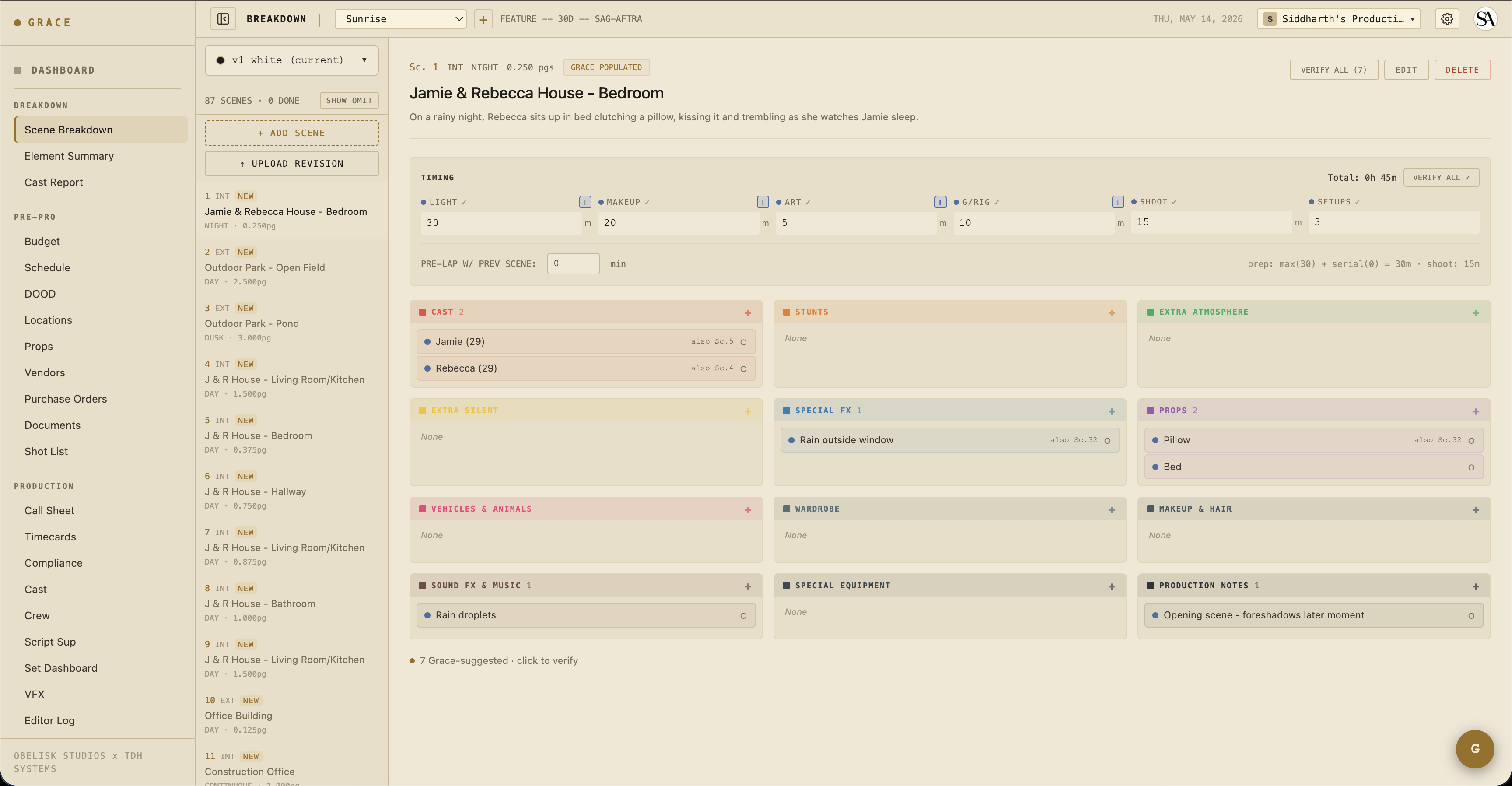
The scenes table is now populated. Click any scene number to drill into the scene detail panel — see all its elements, edit descriptions, mark hazardous elements as verified.
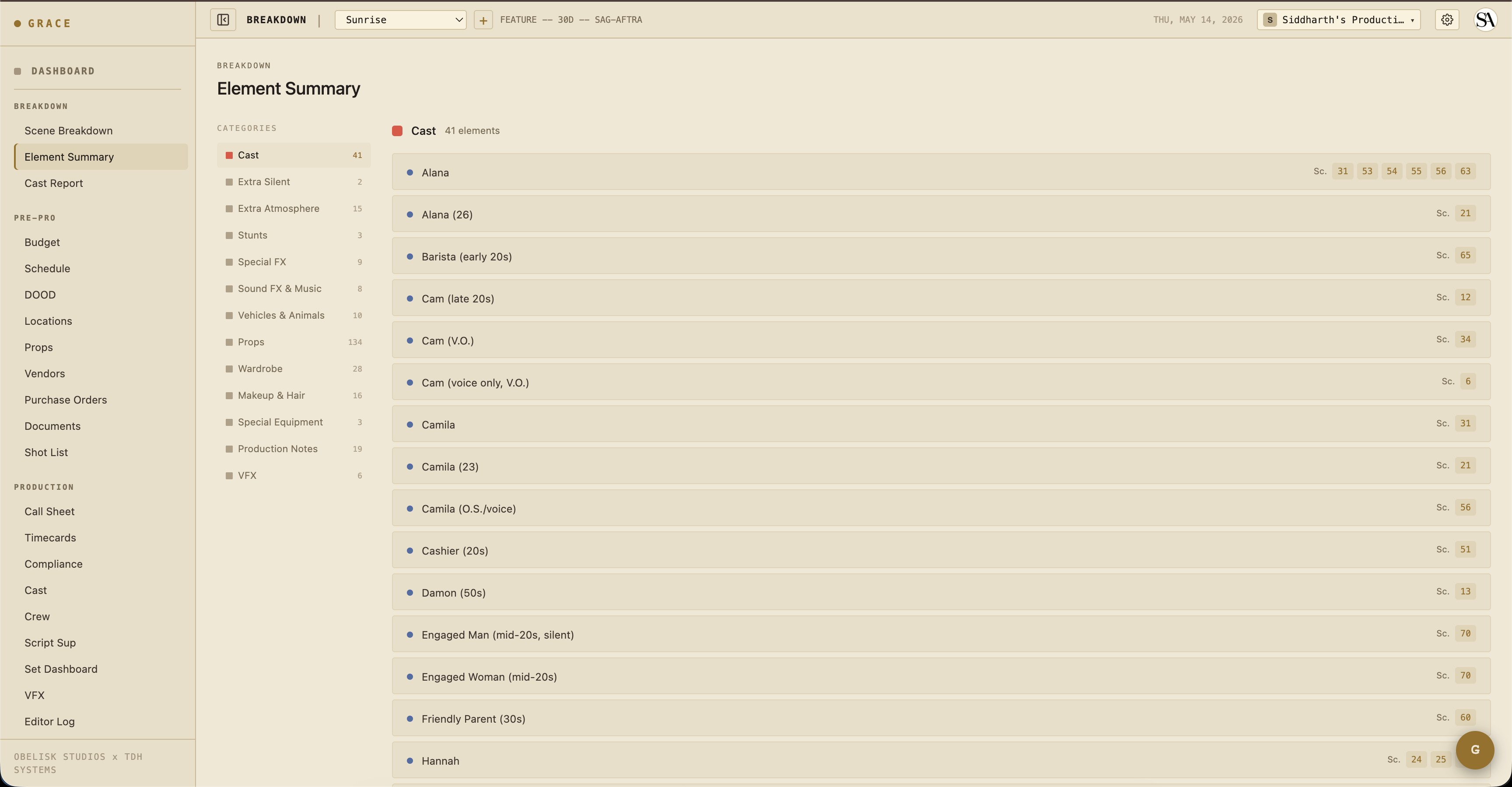
The Element Summary view (/breakdown/summary) aggregates elements across all scenes, grouped by category. Useful for "how many distinct props will we need" / "which scenes have stunts."
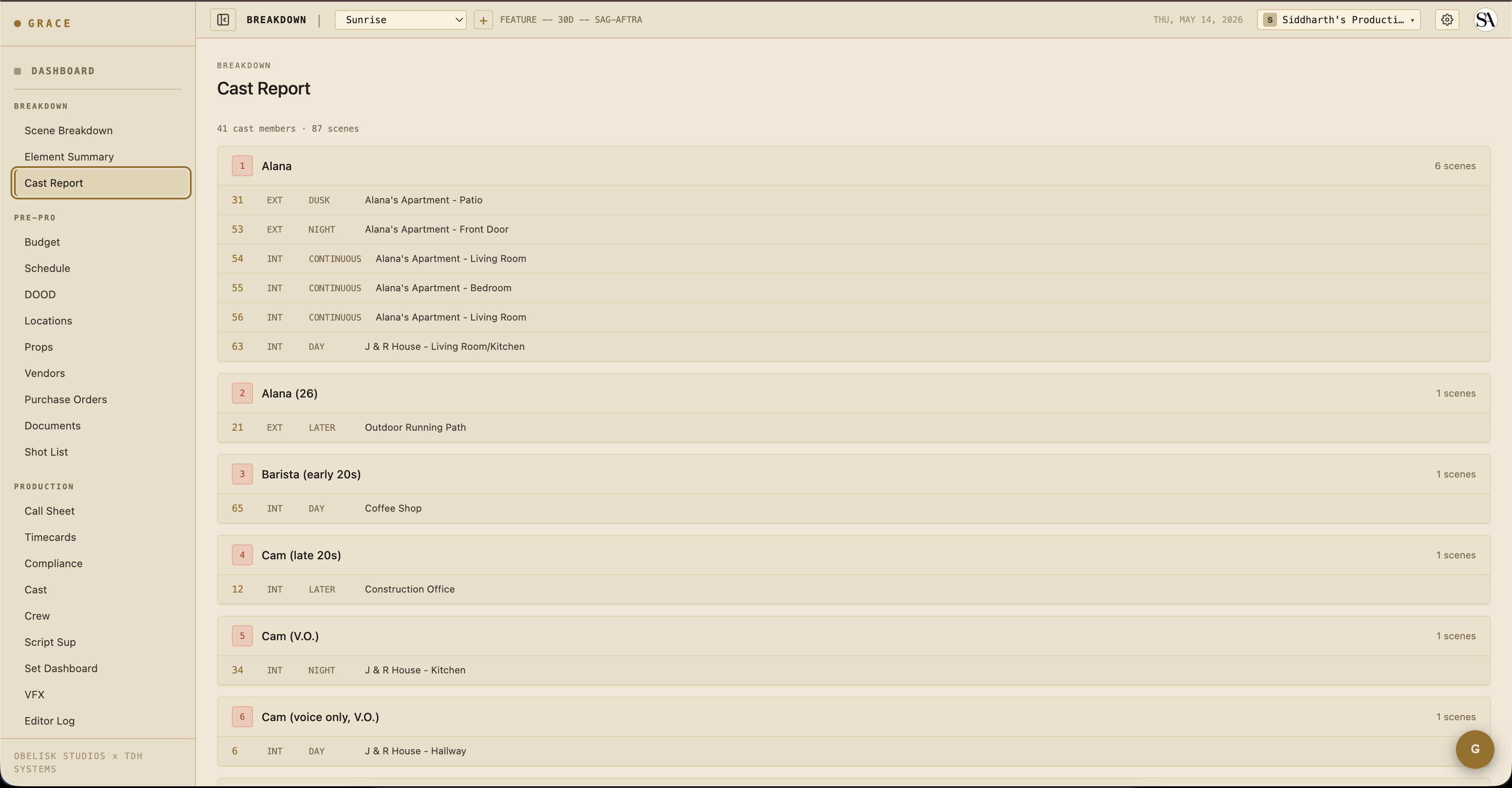
The Cast Report view (/breakdown/cast) shows the cast roster with their work days computed from the scenes they're in. This becomes the basis for the DOOD (Day Out of Days) on the schedule side.
3. Revision upload flow
Once you have a script committed, future uploads are revisions. The new script goes through the AI parse and is staged as pending_review. Grace diffs the new scenes against the existing ones:
- Unchanged — same scene number, content fingerprint matches. No action needed.
- Modified — same scene number, content changed. Diff shown side-by-side.
- Added — new scene number. Marked for accept.
- Removed — was in v1, missing from v2. Marked for soft-delete.
- Possible match — heading similarity ≥ 0.75 (Jaccard) suggests these are the "same" scene renamed.
You walk through the diff at /breakdown/review/<scriptId> and accept/reject each change. The bottom of the page has fork toggles — when you commit, Grace can also fork the schedule, budget, and shot list to new artifact versions tied to this revision (so v2 changes don't trash your v1 schedule).
Industry revision colors
Each successive revision gets a color from the industry-standard cycle:
white → blue → pink → yellow → green → goldenrod → buff → salmon → cherry → tan → ivory
After ivory, the prefix becomes "Double" → "Triple" etc. The revision color appears in the script header, on call sheets, and in the schedule strip footer so everyone on set knows which version you're shooting from. See revisions for the full mechanics.
4. Element verification
By default, every element Grace extracted shows up with a blue dot (Grace suggested). The first time you (or anyone with scenes write access) touches it, the dot flips to gold — confirmed by a human.
Why this matters:
- Producers reviewing the breakdown can see at a glance which elements have been double-checked.
- Stunt / weapon / animal elements (hazards) should always be reviewed before they appear on a call sheet — Grace can over-flag or miss things.
- Compliance: the safety bulletin on the set dashboard surfaces hazard elements from today's scenes. If a stunt element is flagged blue but not verified, that's a "needs your eyes" signal.
5. Commit a revision
On the review page, after toggling accept/reject per scene:
- (Optional) Pick which artifact versions to fork (schedule / budget / shot list) and give the fork a name like "v2 — color pages 2026-05-15."
- Click COMMIT REVISION.
What Grace does atomically in one transaction:
- Applies all accepted MODIFIED scenes — merges elements by
(category, lowercase(trim(name)))so existingcastMemberId,isVerified,descriptionetc. survive. Updates matched, inserts new, soft-deletes orphan. - Applies all accepted ADDED scenes — stamps
breakdownNumber = max+1..(atomic probe). - Applies all accepted REMOVED scenes — soft-deletes with
omittedInScriptId. They stay visible in the UI with strike-through. - Forks selected artifact versions (clone strips/budget/shots into new version IDs tied to the new script).
- Flips the new script's
isCurrent = true, clearsdiffPayload, callssnapshotScenesForScript().
All-or-nothing. If anything fails, nothing changes.
6. Discard a draft
If a revision looks wrong (the parse hallucinated too much, you want to re-upload), click DISCARD on the review page. The pending script row deletes; no changes propagated.
What's next
Now that you have a breakdown, the next step is layered planning:
- Pre-production — schedule, budget, locations, props, shot list, documents.
- For directors specifically: Script supervisor workflow covers continuity + takes.