Script supervisor workflow
/dashboard/production/script-supervisor. Script Sup's dedicated work surface for capturing continuity, takes, and director picks. The continuity notes + takes you log here flow downstream to the editor log + the daily camera report PDFs.
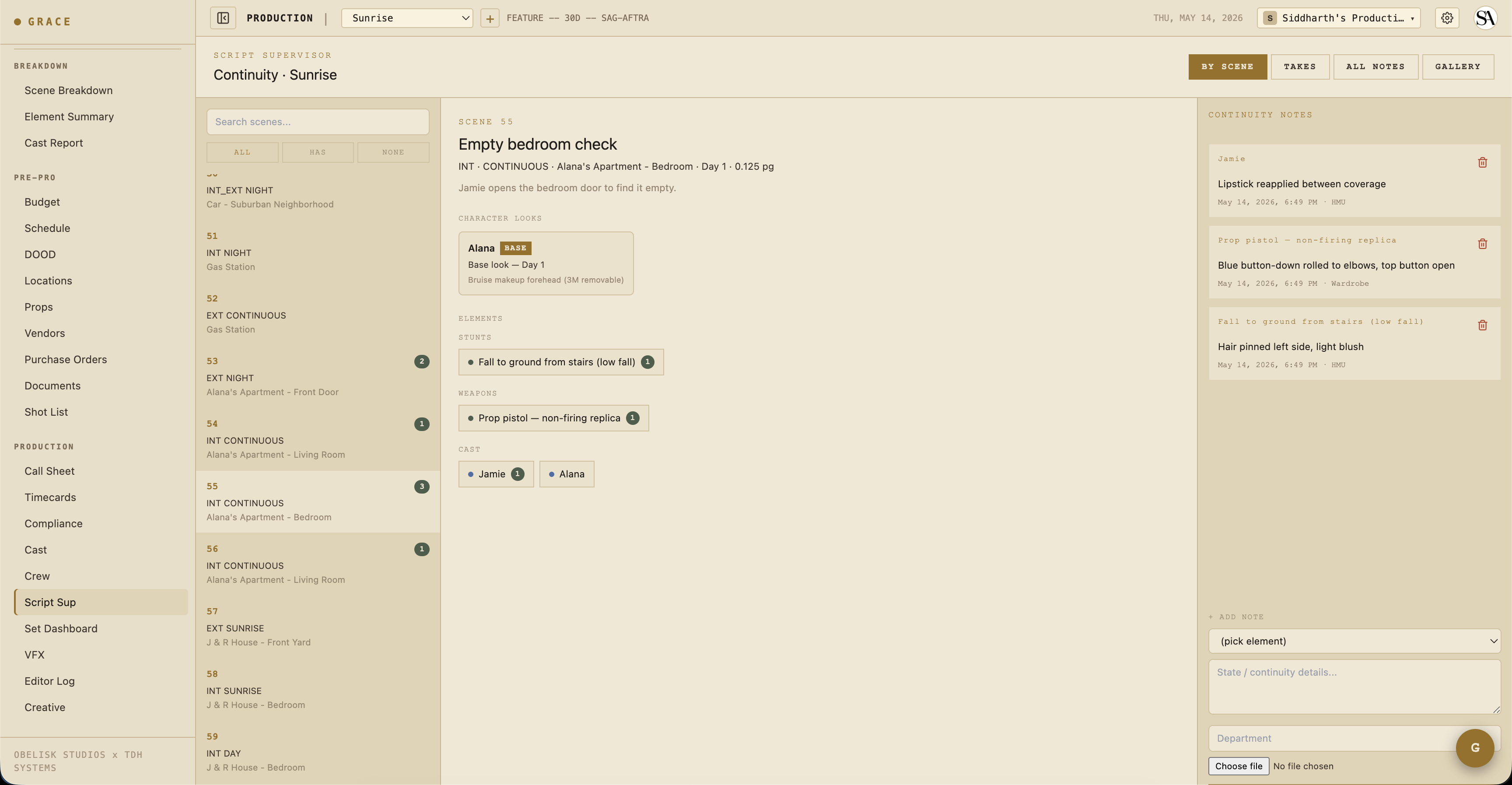
Layout
Three panes on desktop. On mobile, you toggle between them via tabs:
- Left — Scenes list for today (or whichever shoot day you're on). Includes any non-scene strips (lunch, moves) for context.
- Middle — Shots for the selected scene. Each shot row collapses to show its takes.
- Right — Take detail + continuity panel for the selected shot.
Logging a take
When a take rolls:
- Tap the active shot.
- Tap + NEW TAKE (or the keyboard shortcut if you have one wired).
- Set the take's
status:- Circle (the keeper) — green dot.
- Hold — might use. Default for tentative coverage.
- NG — no good. Director can override later via Editor Log picks.
- False start — never rolled / aborted.
- Capture the camera report fields:
- Camera — A / B / C / etc.
- Camera body — model (ALEXA Mini LF, RED Komodo, etc.).
- Lens — focal length.
- T-stop — exposure.
- Filter — ND / pol / diff / etc.
- Focus distance — feet/meters.
- Duration — seconds.
- Notes — what was different. Whose line was muffed, whose timing was off, what the prop did that it shouldn't.
Take number auto-increments per shot. Re-numbering is intentional and locked (UNIQUE constraint on shotId + takeNumber).
Continuity notes
When you tap an element row from the scene side, a continuity drawer opens. Drop in a state note:
- HMU — "Hair pinned left, light blush"
- Wardrobe — "Blue button-down rolled to elbow, top button open"
- Set Dec — "Coffee mug 3/4 full, handle camera right"
- Camera — "Practical lamp ON, lampshade tilted 10° clockwise"
Each note carries:
- Element ID — what it's about.
- Scene ID — where it was captured.
- Shot IDs — optional array of shots the note applies to (default empty = all shots in the scene).
- State — your freeform text.
- Captured by dept — which department (HMU / Wardrobe / Set Dec / Camera / Sound).
- Captured by user ID + timestamp — provenance.
Notes for the same element accumulate over time. When you tap that element on a future scene, you see the stack of previous notes for continuity reference — no need to flip through paper.
Director picks
After scene coverage is done, the director may rank specific takes as "selects." From the Set Dashboard or Editor Log:
- Find the shot.
- From the shot's take list, tap a circled take.
- Mark it as the primary pick (orderIndex 0) or rank it (orderIndex 1, 2, ... for secondary picks).
Picks land in the shot_selects table and flow through to the editor log + the EDL / FCPXML / CSV exports.
Mobile
Script Sup uses an mobilePane state ('list'/'detail'/'notes'/'data') to swap which pane is visible. The dashboard tab in TopBar (BREAKDOWN / SCHEDULE / etc.) resets mobilePane to 'list' on tab change so you start from a known state.
Creative refs
/dashboard/production/creative shows reference assets tagged by scene.
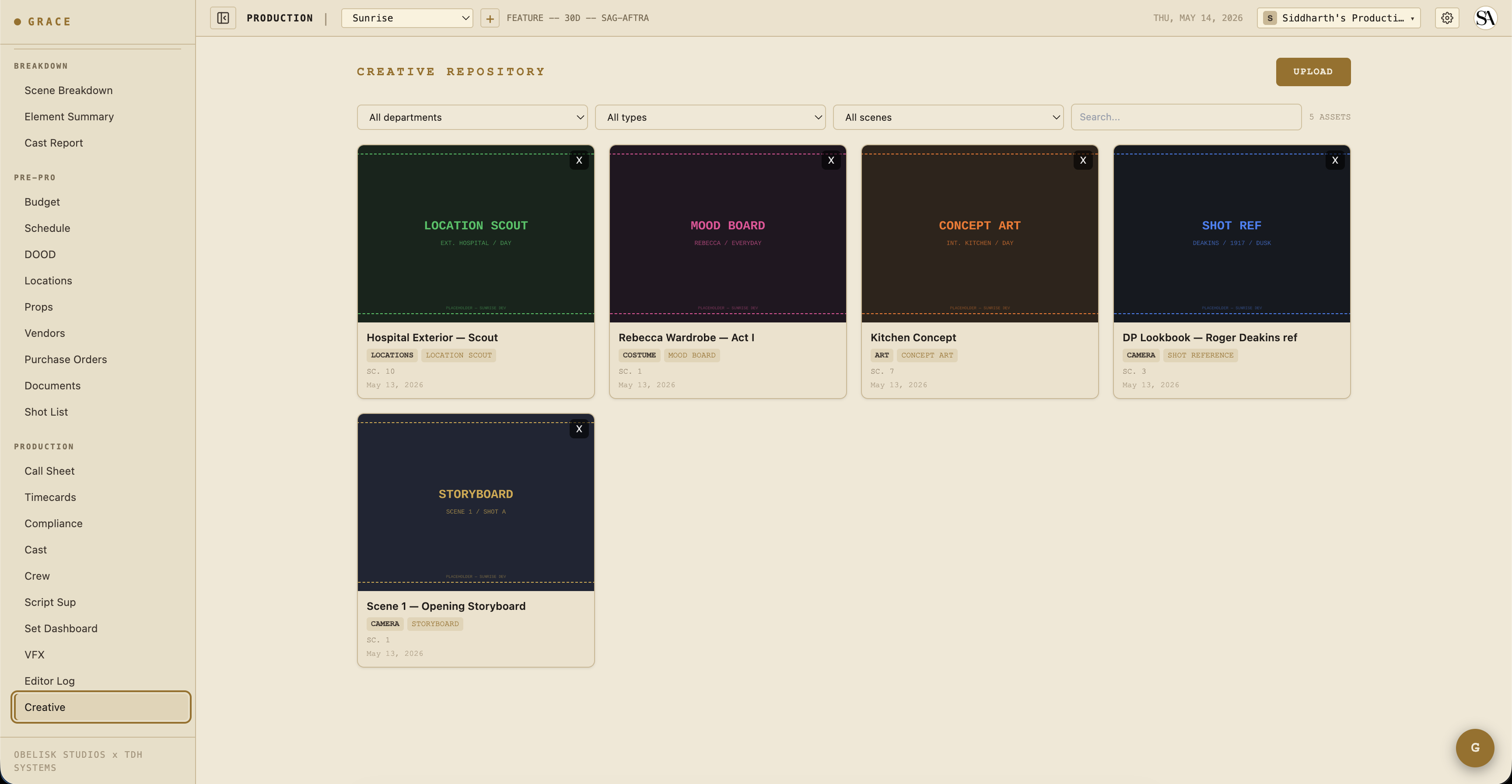
From the script sup detail pane, you'll see a CREATIVE REFS strip showing any assets tagged to the selected scene — mood boards, prevs, frame references from the director.
What flows downstream
Everything you log here drives:
- Editor log — Coverage → Editor Log is the circled-takes view by default, with an option to show all takes.
- Camera report PDF — exports a daily camera report from your take data.
- Script supervisor report PDF — exports a continuity-focused report.
- Editor log exports — EDL / FCPXML / CSV / PDF — see Editor log.
Next
- Editor log — where your circled takes + picks show up.
- VFX flagging + turnover — if today had VFX shots, the requirements should be tracked here too.